How do I file my ECE Return?
To file your ECE return, go to MOE on your left menu. Click ECE Return.
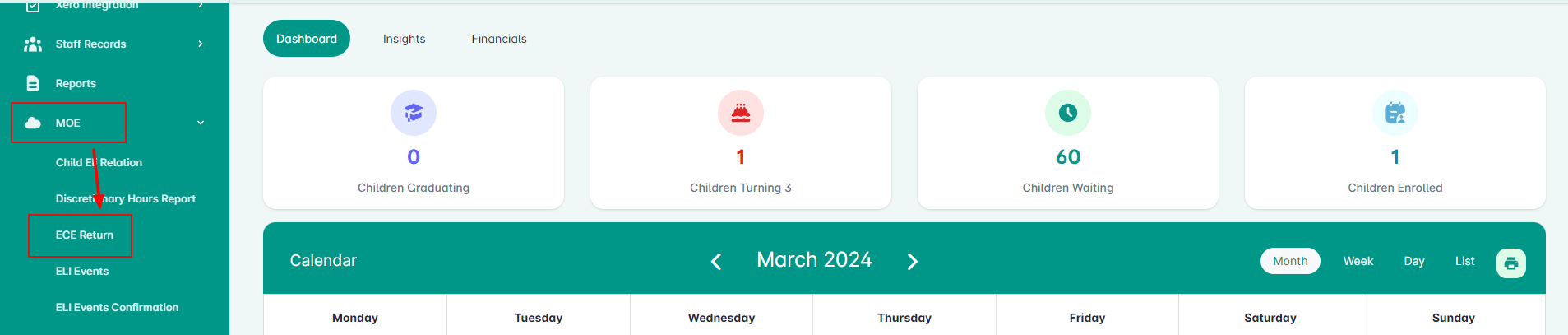
During the ECE Return week, you will be able to access this page. Before initiating to submit, there are a few tasks you need to do/check:
- Attendances should be marked during the ECE Return week.
- You can view the Monthly Attendance report under Reports to check for attendances in one glance.
- Contact hours should be saved during the ECE Return week.
- Make sure to click the Save button on your Contact hours tab.
- Update all the staff details on the Staff/Educators page.
- Make sure to include leaving dates as well.
Click continue to proceed.
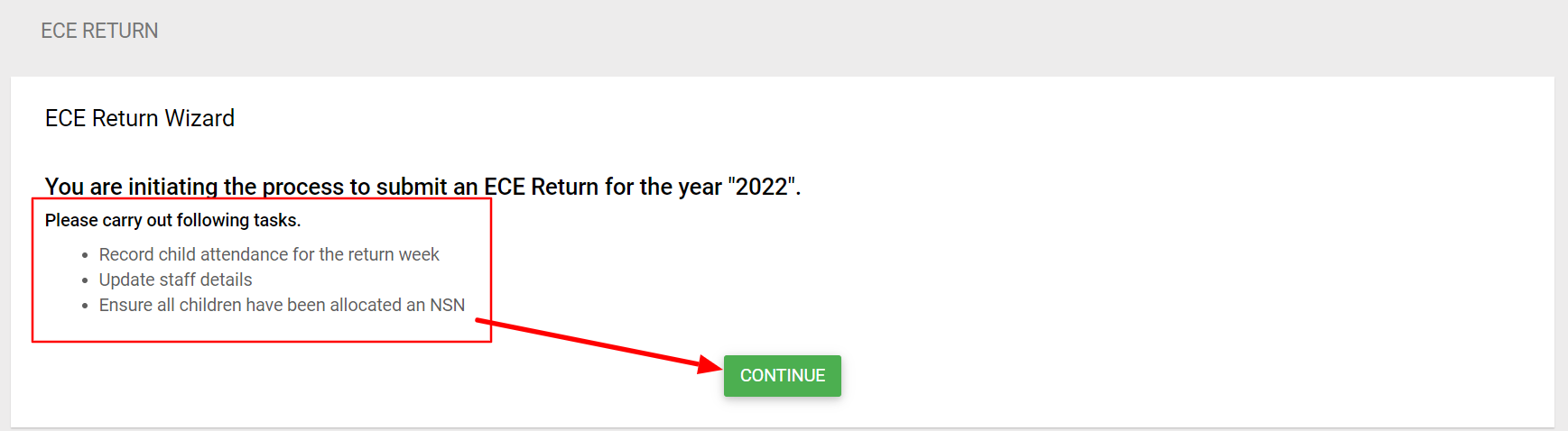
1. You will be asked to enter the START date of the ECE return week. Click Save & Continue to proceed.
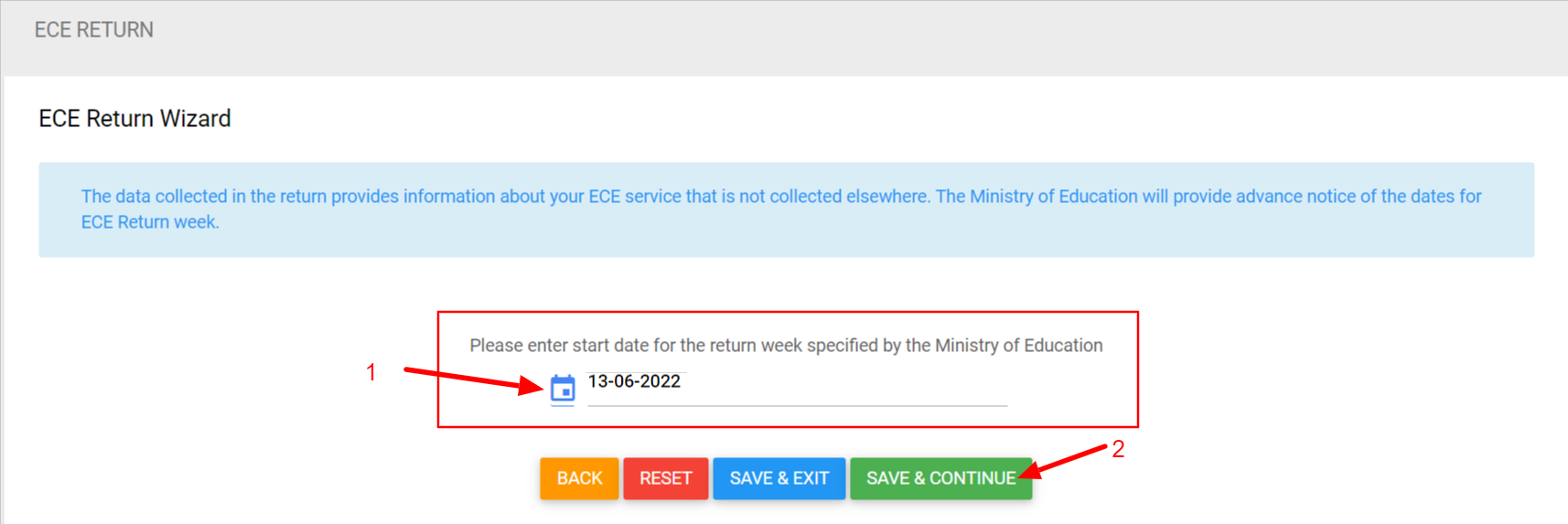
2. Next screen will be for the wait times at your service.
The system calculates the wait times and populates this information for you automatically in ECE return. You can access your wait times from the MOE section on the left menu.
For more info – See Wait Status Report
Click Save & Continue to proceed.
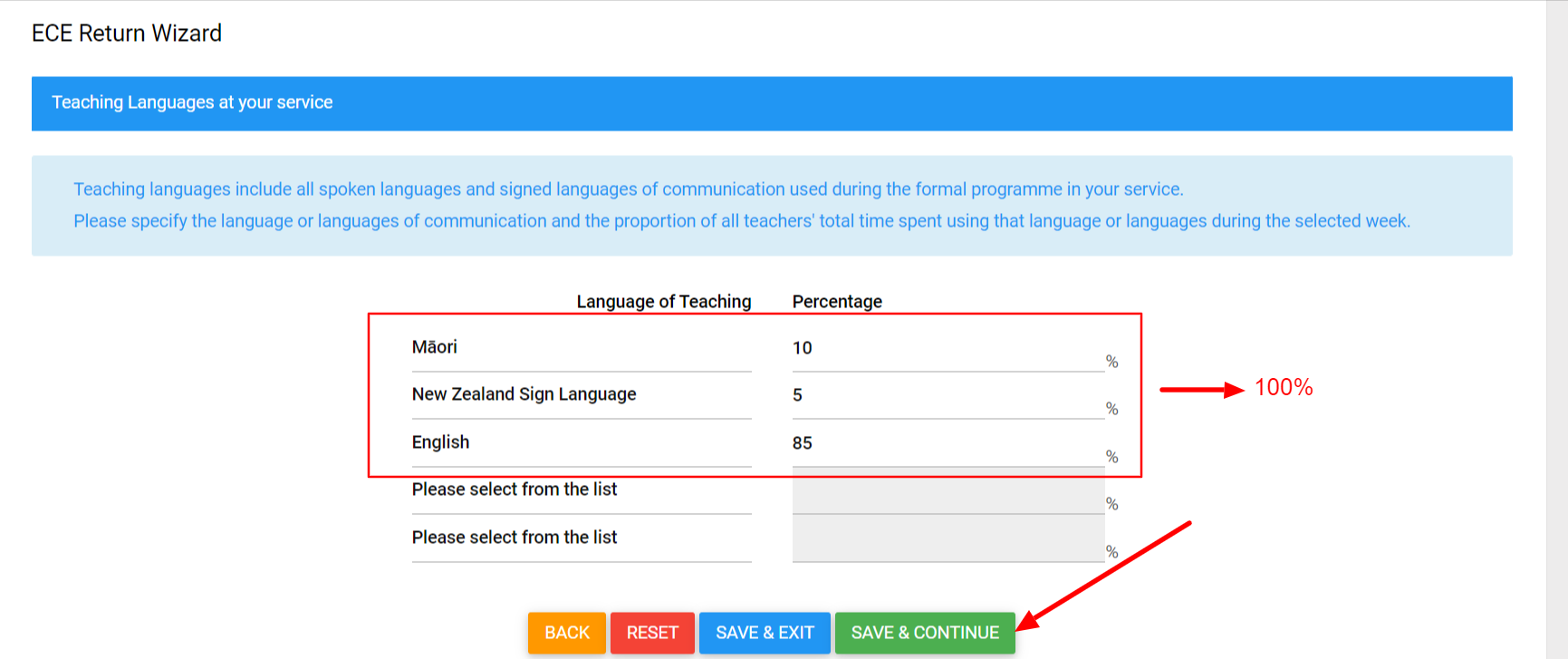
3. On the next screen, add the languages and the percentage of all teacher’s total time spent using languages in the ECE Return week as shown below.
The system auto-populates the languages and percentage values in the ECE return by reading language settings saved under Edit Centre Page on your Settings.
• Provide at least one language
Note: The system will allow you to override any information in the ECE return ensure you have provided at least one language.
• You cannot select the same language twice.
• The percentage must sum up to 100%.
• The ‘Percentage of time taught in that language’ cannot be in decimals, zero or empty.
Click Save & Continue to proceed.
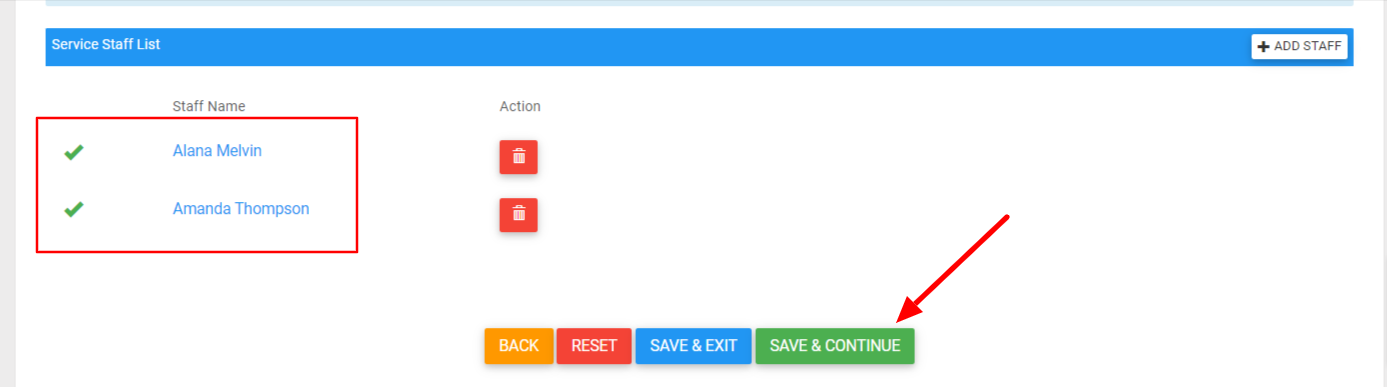
4. Next you will have to complete the details per staff.
Staff who were present at your service during this week will need to be entered here.
• For non-educator roles, check the box for any role that a staff member worked in this week.
• For educators, provide the actual contact start and finish times for all teachers who were teaching in this week.
• If you have used a relieving teacher during this week, add them to staff records and enter the relieving teacher’s contact hours.
Remove any staff members by clicking on the red trash bin icon and add staff by clicking on the add staff button to the right
Click on a staff name and fill out/check all details.
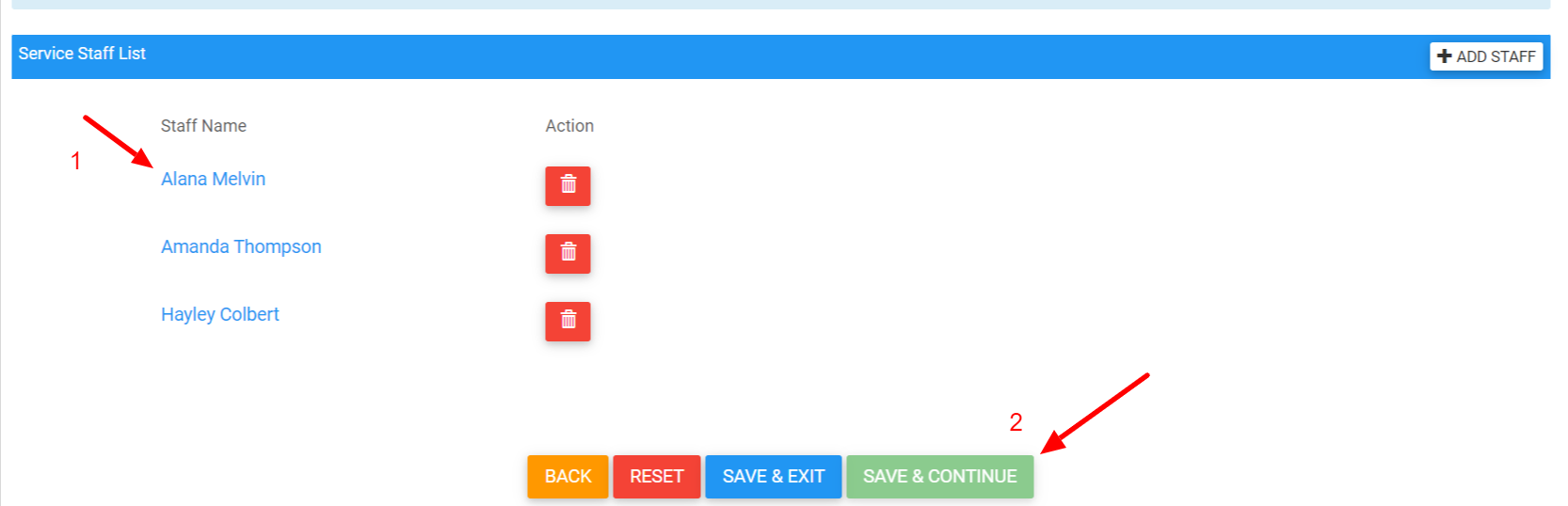
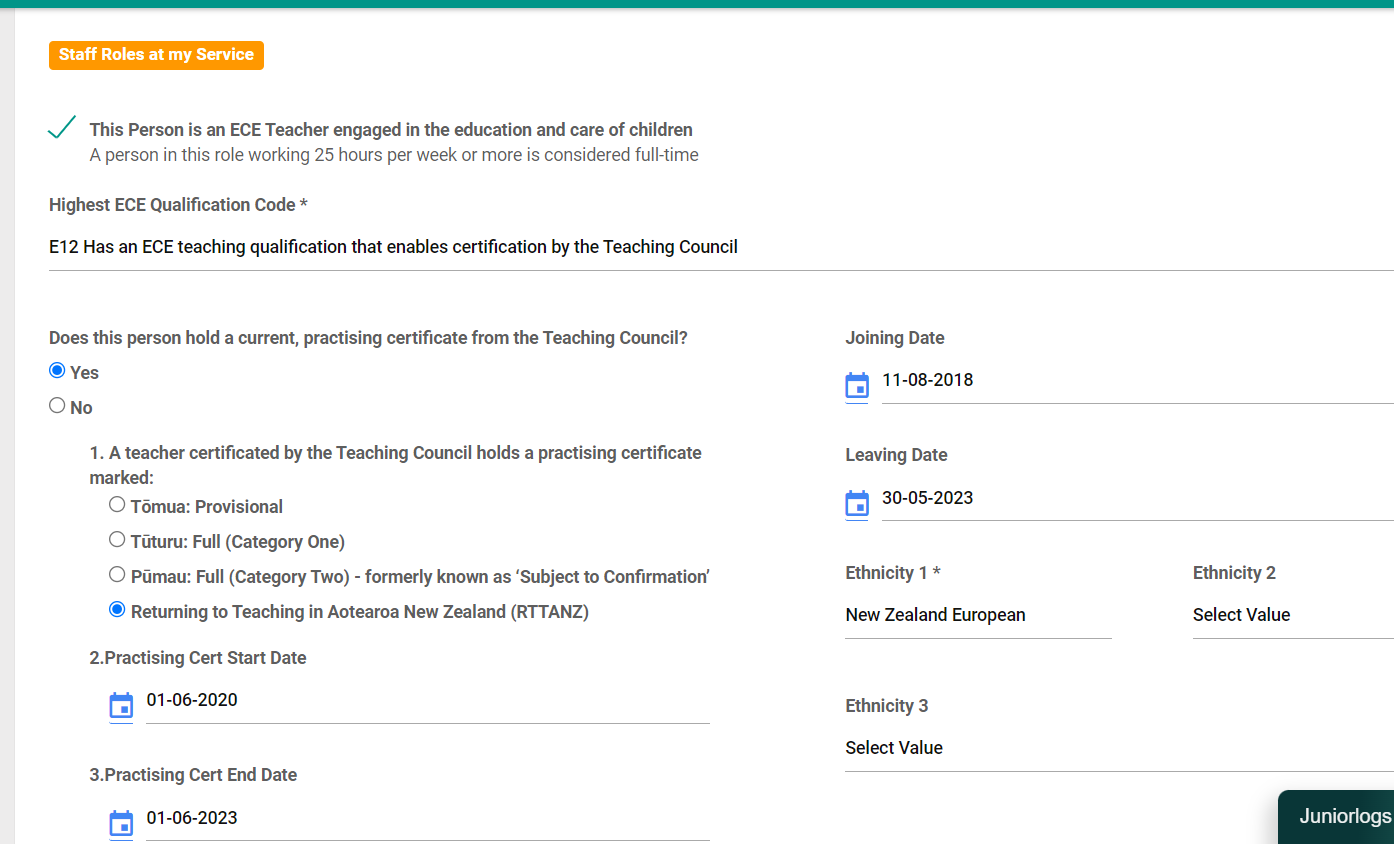
The system auto-populates the staff details that are saved under the Staff/Educators section. You can update the staff details in the ECE return as appropriate. The system will walk you through the options and guide you through these areas.
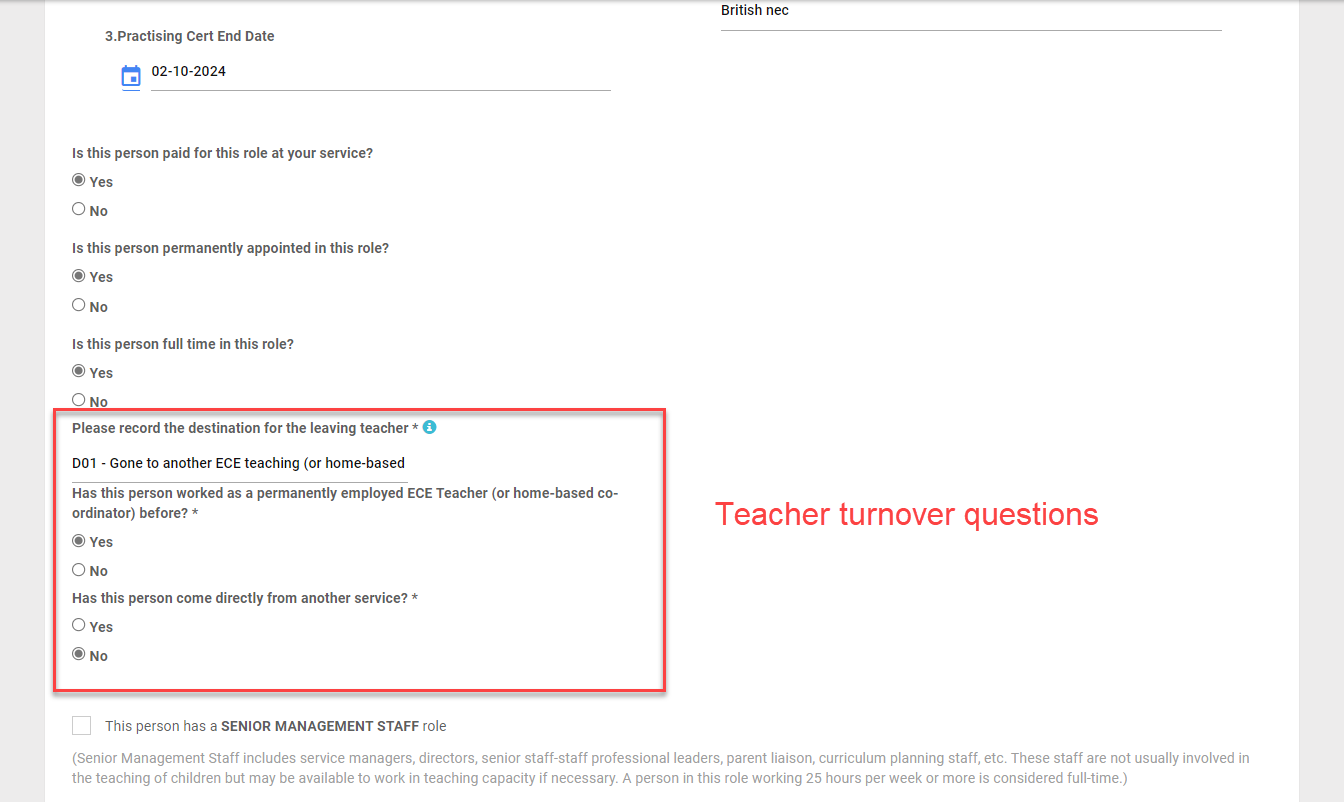
Three new teacher turnover questions in the ECE return:
- Has this person ever worked as a permanently employed ECE teacher (or home-based coordinator) before?
- Has this person come directly from another ECE service?
- Please record the destination for the leaving teacher.
Age band is auto-populated based on the staff’s date of birth saved. If the age band is showing in ECE Return Wizard, you may go to Staff details and update the date of birth so it can auto-populate here.

The user updates the ‘Hours worked ’ as needed. The system auto-populates the contact hours in the ECE return from the contact hours page. It populates only those duties which are recorded as “Contact Hours”. The user can change the contact hours as needed. The total contact hours must be the same with the total hours worked.

Once you have checked/updated all of the staff, click Save & Continue to proceed.
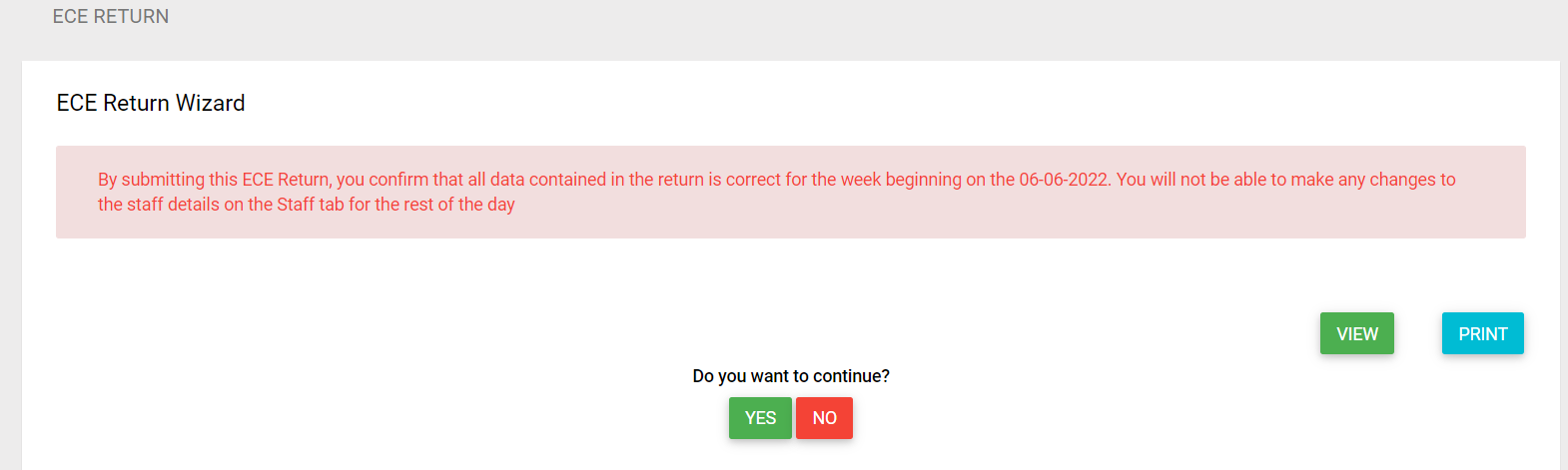
5. Your confirmation is required to state that all data contained in the ECE return is correct – either click on No to go back to Edit further or click Yes to confirm.
– To view all data submitted for the ECE Return, Click the VIEW Button
– To Print the ECE Return data, Click the PRINT button
After clicking the Yes, you may see a warning message. This message occurs when there is a mismatch between contact hours and attendance hours.
Press CONTINUE to submit the ECE return or press CANCEL to amend the hours.
Please see ECE Return History under Reports > MOE to access previously filed ECE Returns.